Power Agent Tray: your Copilot Studio agent in the system tray
February 06, 2026
Want your Copilot Studio agent available everywhere on your Windows desktop without a full app window? Power Agent Tray lives quietly in your system tray, exposing your agent to any MCP-compatible client through stdio transport.
What it does
Power Agent Tray is a lightweight Electron app that runs in the background. It connects to your Copilot Studio agent and exposes it via the Model Context Protocol (MCP). Once running, any MCP client on your machine—VS Code, Claude Desktop, or custom tools—can chat with your agent.
The app handles all the authentication complexity for you. It uses MSAL with PKCE OAuth flow for secure Entra ID login, storing tokens safely using OS-level credential persistence (DPAPI on Windows). You sign in once, and the app remembers your session across restarts.
Here’s what you get:
- 🖥️ System tray integration — runs unobtrusively in your taskbar
- 🔌 MCP server — exposes Copilot Studio agents as MCP tools via stdio
- 🔐 MSAL authentication — PKCE OAuth flow for secure Entra ID login
- 🔒 Secure token storage — OS-level credential persistence
- 🚀 Auto-start — optional Windows startup registration
Tray menu options
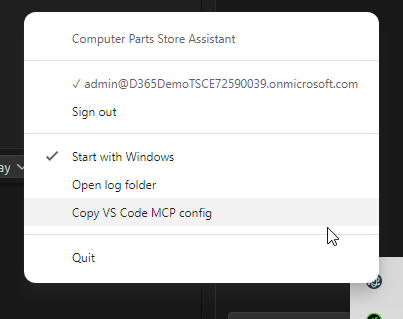
| Menu item | What it does |
|---|---|
| Agent name | Shows the configured Copilot Studio agent |
| Sign in / Sign out | Manage authentication |
| Start with Windows | Toggle auto-start on login |
| Open log folder | View rotating log files |
| Copy VS Code MCP config | Copy ready-to-paste MCP server entry |
| Quit | Exit the application |
Prerequisites
- Node.js 20+
- npm 10+
- Azure Entra ID app registration
- Copilot Studio agent (published, with Direct Connect URL)
Azure app registration
- Go to Azure Portal → App registrations → your app
- Navigate to Authentication → Add a platform → Mobile and desktop applications
- Add a custom redirect URI:
http://localhost:3847/auth/callback - Save
This redirect URI works for all users—the app runs a temporary local server on port 3847 during login.
Setup
npm install
Copy .env.example to .env and fill in your values:
CLIENT_ID=your-azure-app-client-id
TENANT_ID=your-azure-tenant-id
DIRECT_CONNECT_URL=https://your-environment.api.powerplatform.com/copilotstudio/...
Get the Direct Connect URL from Copilot Studio → Channels → Web app.
Build and run
npm run build       # Compile TypeScript
npm run start       # Build and launch tray app
npm run dev         # Build and launch (development)
npm run pack        # Build unpacked distributable
npm run dist        # Build installer (.exe)
When running, you’ll see the Power Agent icon in your system tray. Right-click for the menu.
MCP client configuration
Connect from VS Code, Claude Desktop, or any MCP client by adding this to your MCP config:
{
  "mcpServers": {
    "power-agent-tray": {
      "type": "stdio",
      "command": "<path-to>/node_modules/electron/dist/electron.exe",
      "args": ["dist/main.js", "--stdio"],
      "cwd": "<path-to>/Power Agent Tray"
    }
  }
}
💡 Tip: Use the Copy VS Code MCP config option in the tray menu—it generates a ready-to-paste config with correct paths.
Available MCP tools
| Tool | Description |
|---|---|
chat_with_agent |
Send a message and get a response |
start_conversation |
Begin a new conversation session |
end_conversation |
End the current conversation |
get_auth_status |
Check authentication state and current user |
login |
Trigger browser-based PKCE login |
logout |
Sign out and clear cached tokens |
Architecture
Power Agent Tray/
├── src/
│   ├── main.ts            # Electron main process, tray menu, entry point
│   ├── auth-service.ts    # MSAL PKCE auth + persistent token cache
│   ├── agent-client.ts    # Copilot Studio client wrapper
│   ├── mcp-server.ts      # MCP protocol server (tool definitions)
│   ├── logger.ts          # Rotating file logger
│   └── ui/
│       ├── chat-app.html  # MCP Apps interactive UI template
│       └── chat-app.ts    # MCP Apps client for rendering responses
├── assets/
│   └── electron.ico       # Tray icon
├── .env.example           # Environment variable template
├── mcp-config.json        # Sample MCP client configuration
├── vite.config.ts         # Bundles UI into single HTML file
├── package.json
└── tsconfig.json
When to use Tray vs Desktop
Power Agent Tray is designed for a specific use case: background MCP access.
| Feature | Power Agent Tray | Power Agent Desktop |
|---|---|---|
| System tray | ✅ | ❌ |
| Chat window | ❌ | ✅ |
| Voice I/O | ❌ | ✅ |
| Adaptive Cards | ❌ | ✅ |
| MCP server | ✅ | ✅ |
| Lightweight | ✅ | ❌ |
| Auto-start | ✅ | ❌ |
Choose Power Agent Tray when you want your agent available to MCP clients without a visible UI. Choose Power Agent Desktop when you want a full conversational experience with voice and rich card rendering.